Hey, you are asking a veteran Android developer :). Of course I’ve enabled developer options.
Did you try this on your phone?
Can you kindly reconfirm your issue? You cant enable/allow USB debugging or you enabled but adb isnt working? If the latter indeed it does not fit here…
Yep, tried all sorts of permutations between enabling USB debugging, revoking authorizations, switching between file transfer and charging only, plus cable plugging/unplugging.
At best I’ve got the dialog “allow computer” once when I switched to file transfer but then adb would show device as offline.
OTOH debugging with my Pixel 6a would just works.
Yes, that’s the final result. I have also problems with authorizing the computer - dialog won’t appear. Shall I create a new thread?
NOTE since wi-fi debugging works, it’s not that important to me ATM.
The topic here is about the fact that people cant allow the PC, if this is the same for you the topic fits. If you can allow and just not use adb in my eyes its another issue.
Having the same issue, have followed the steps tried different cables I am using windows 11. Any one have a solution for Windows 11?
Replying as the accepted answer is BS. I am a Linux and Unix admin. This is not a Windows issue.
Look for the TLDR in bold to jump to the solution.
Bought the wrong phone model so instead of /e/OS I had a Google Logo on my screen 
Tried the web installer and had the same issues as described. running “adb devices” also showed nothing on my out dated Windows 10.
Tried the same on my companies W11 notebook with latest updates. Same result.
So I connected my Android 13 phone and it showed right up in adb.
The difference is that A13 will show in “No data transfer” and in “File Transfer”. The new FP6 with A15 on the other hand only shows up in adb with “No data transfer” enabled.
On my A13 phone, when I am in connection settings. I get a new “Allow USB debugging” prompt as soon as I switch from NDT to DT. On the A15 phone it only shows up when the phone is set to No Data Transfer.
TLDR
So, this is the solution. For a FP6.
- Set the “Default USB configuration” in Developer Options to the default of “No data transfer”
Other then that, follow this guide and your device boots into /e/OS
“adb” is not mandatory for installing /e/ on a Fairphone, (simply use buttons to reboot), but “fastboot” is needed to flash partitions …
.
even installing fastboot can be avoided,
as workaround you can use the embeded binary instead
(see the method i used for macOS guide)
A clear guide to install /e/OS on your Fairphone
@MaxBeta, if, what you were unable to cause to appear, is what is below:
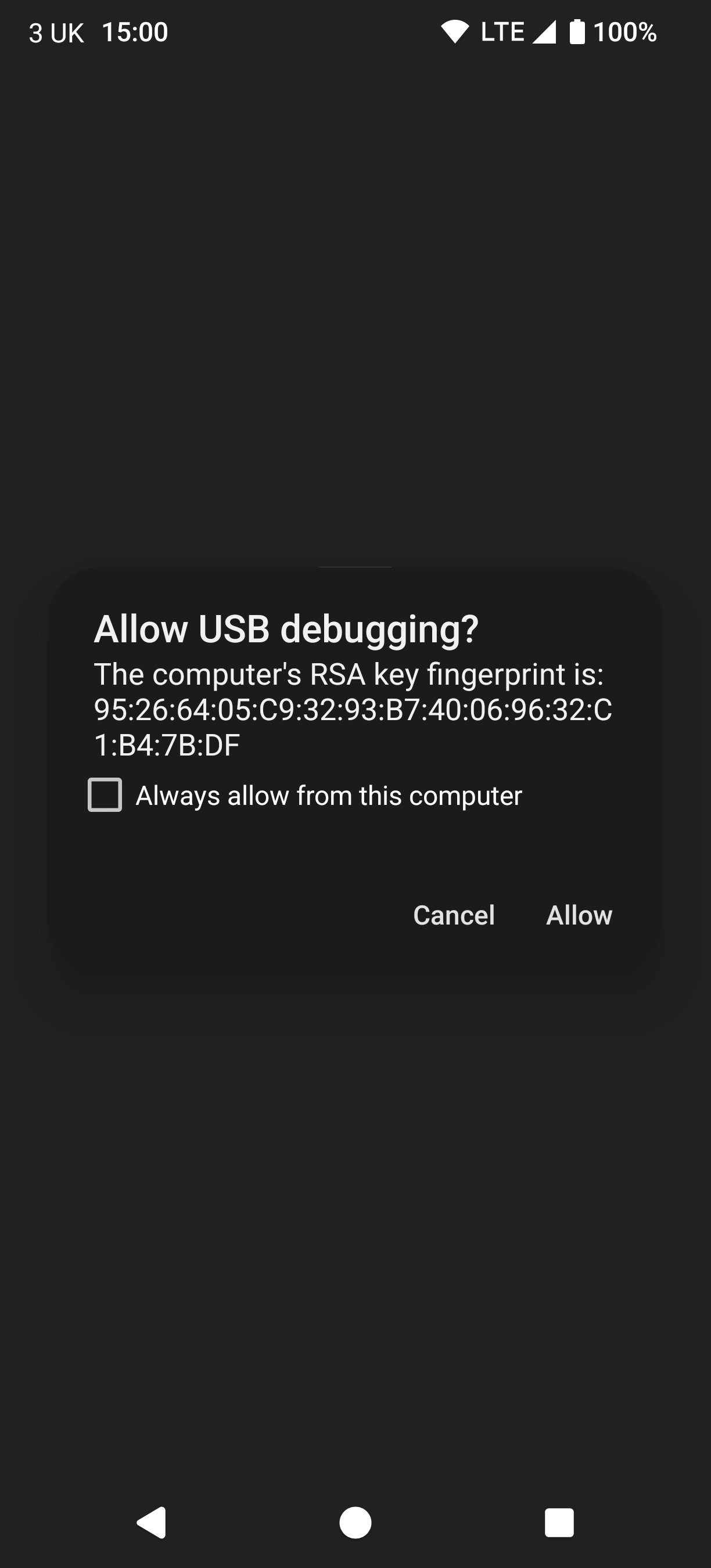
…I was experiencing this on cpe:/o:fedoraproject:fedora:43. I managed to solve it by connecting to my ASRock X670E Taichi directly via its embedded TB4 port, via a TB4 cable, and even this required a few initial re-connections.
Likely, the USB-C (≈ 3.2 Gen 2) cable, connected to a USB-A (≈ 3.2 Gen 1) port, via a Type-A to Type-C adapter, was insufficient for it to register with adb-server.
Tips could be :
- revoque previous authorisations
- unplug, replug after ena,bling USB debugging
- launch
adb devices