I imported a Fairphone 6, with the standard android operating system with the plans to put e/os on the phone myself. I’d never done this before either.
I have now successfully flashed the Murena e/os onto my FP6, which is working without issue.
There was a lot of troubleshooting I had to go through until it worked.
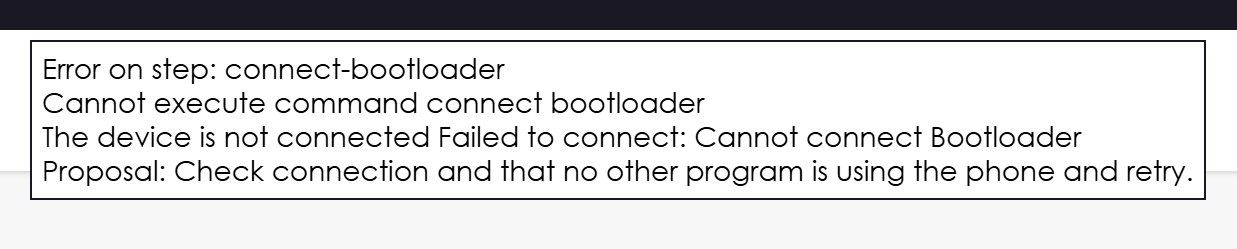
Firstly, I believe I read somewhere that the web installer is not very successful with flashing e/os onto a FP6. I got as far as 22/24 steps, using the online installer (some writing error message stopped process) - which left my phone looping in unlocked fastboot mode. It was after this, I think I read to not use the web installer for FP6.
I think the manual method is recommended for the FP6. I was successful in flashing my unlocked fastboot looping FP6 using the manual method. You’ll mainly be working with command prompts in a terminal window. See instructions below:
A few things I found that helped along the way:
- Ensure the cable to connect your phone to your computer is a data transfer cable, not just a charging cable. I got a few off of amazon, try different cables and different USB ports.
- I was successful using a USB booted version of Linux Mint, on a windows laptop (I seemed to get more errors in Windows 11). I was using a 32GB usb drive, and kept running out of space (installation files, and Platform Tools need to be downloaded into linux) - so you might want to uses a USB with more that 32 GB of space as your linux boot USB.
- Do a search on every error message you get (I copy and pasted the error wording). I also used LLM feedback re the errors I received, and it usually gave me a very detailed way to resolve that particular error. Internet searches with specific errors were also helpful.
- If you’ve not done the “developer mode”–> OEM unlocking and USB Debugging (in your phone settings) make sure you do this, and verify it’s done. This is described in the link above.
- Per the instuction page above, if you get to the point of trying to write the e/os to you phone, the linux command “ chmod +x flash_FP6_factory.sh && ./flash_FP6_factory.sh “, will likely be your final step to being successful. This step initially gave me many errors, but LLM search of the exact error wording usually gave me a way forward.
- You may need to install an android / google usb driver, once you are in Linux.
- You’ll have two items to download: sdk platform tools, and installtion file (link to installation files in link below, or from installation instruction page). Ensure you have the same version of Android on phone (likely Android 15 if recent purchase), as you do for installtion files. I used the 3.2 version of the “offical” Android 15 builds:
- I ran into issues related to permissions (of various files). If you are using Linux, right click on the “platform tools” folder, go to properties then the permissions tab, and give all users “read and write” access. I think I also did this for the “installation files folder” you will download as well. I ‘think’ this resolved some of my permission errors.
- Ensure you “set a path” to your platform tools folder. I flashed my phone from a Terminal window opened from within the installation files folder - so linux will need to know where to find the adb and fastboot files (within your platform tools folder).
- Are you still able to use your phone with the stock android software? Or are you stuck in some sort of software looping? If you are stuck in a loop of any sort, the hold “Power button + Volume up, or down” - will be your friend to access either bootloader mode or recovery mode.
It took me well over a week, and a lot of long (frustrating) hours to get this to work …. so don’t give up! 
 ]
]