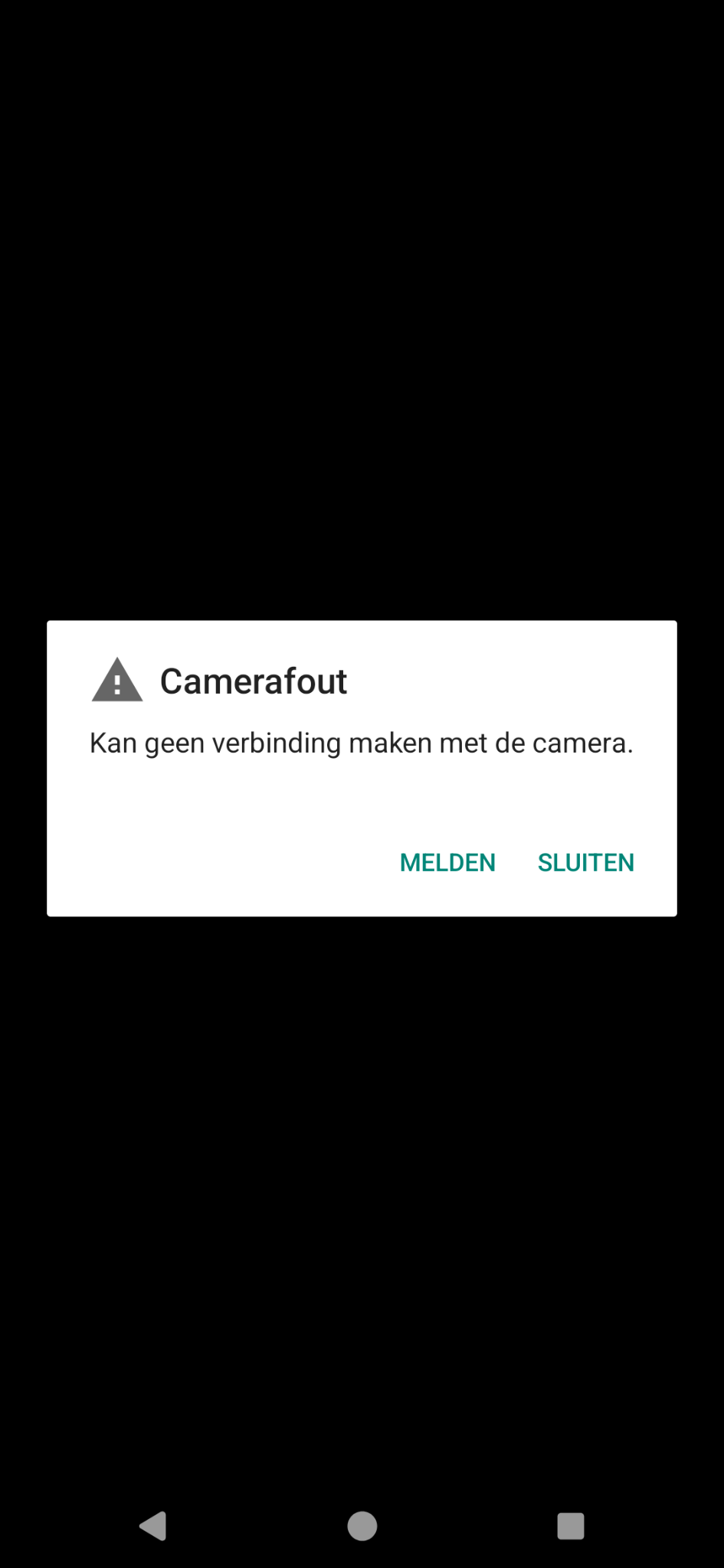
Both cameras on my FP4 stopped working a few weeks ago. Most apps using a camera (e.g. a QR code scanner) now simply display a white or black background instead of any camera output; no error message at all. The ‘official’ (at least pre-installed) Camera app immediately throws an alert on the screen saying ‘Unable to connect to the camera’ (literal translation from Dutch).
Since I didn’t purposely try to take a picture directly after having installed the latest Android update, I cannot be sure if this problem is related. It did coincide closely anyway …
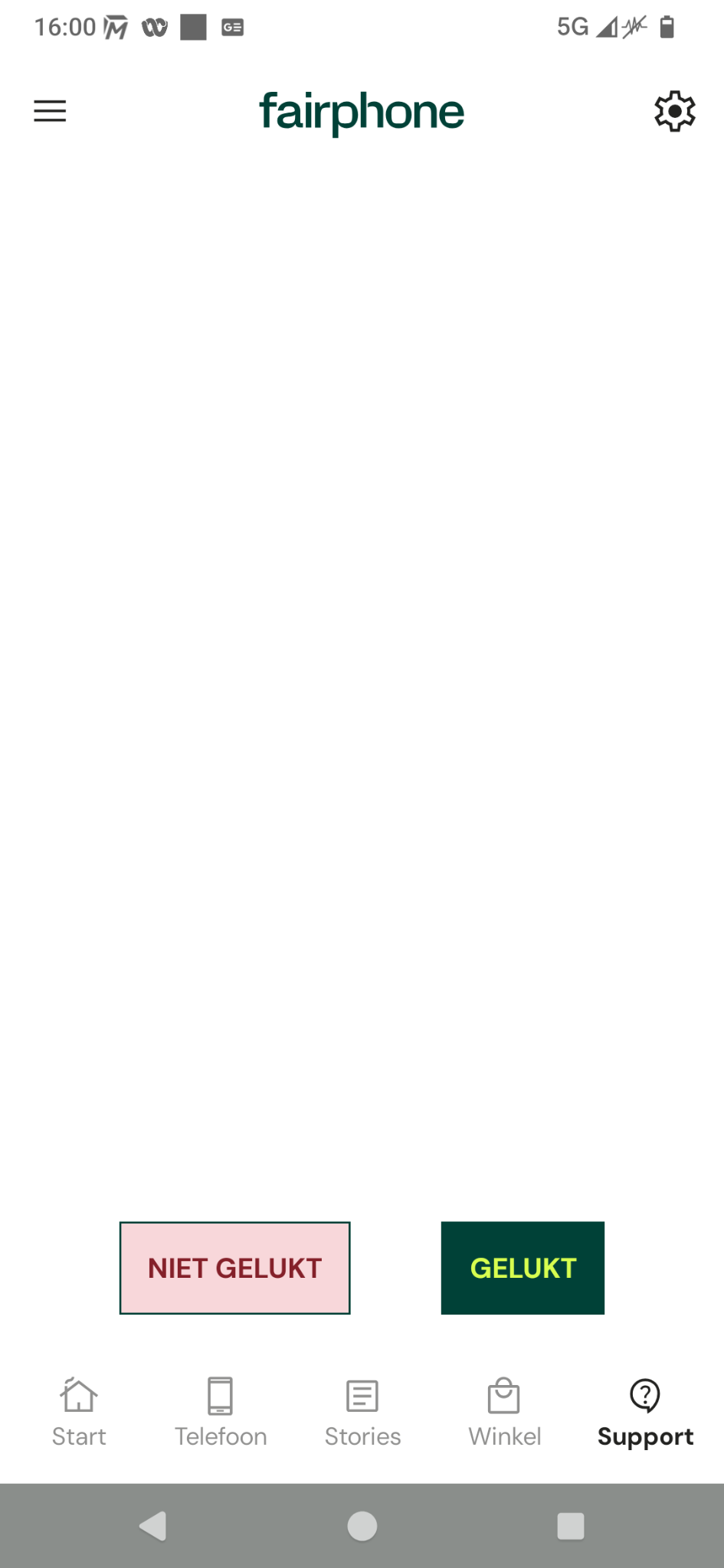
I’d appreciate any suggestions about finding out if this is a hardware issue or not. The camera diagnose options (separately for front and back) within the MyFairphone app result in a white background, no technical message of any sort
Oh, I should’ve mentioned that I already tried removing the backup and cache data for the Camera app; made no difference. Makes sense, because no app at all manages to access the cameras now.
Hi there, I don’t have the FP4, but here are a few things I suggest you can try:
call *#*#2886#*#* - this will bring up a service menu (it won’t actually call anyone), it may look different from model to model, but on my FP6 there are two red “MANU” buttons - one of them brings up a list of components to test - select the camera and see if any more precise errors come up
disconnect and reconnect the cameras, to make sure it’s not a connection issue - you can also visually inspect them, if there isn’t any obvious visual damage to them
contact a Fairphone Angel nearby - they might have some spare cameras laying around (or another FP4) to test your phone with known-good cameras (or your cameras with a known-good phone)
Another thing that came to my mind while browsing other thread - try booting into safe mode (hold the power button until the power menu appears, then tap and hold the reboot button until you get a “Reboot to safe mode” prompt). This will temporarily boot your phone with all your apps disabled, so as close to the “stock” release as possible.
Check if the cameras also don’t work in safe mode and reboot normally to get back into normal mode with all your apps. If the cameras work in safe mode, it suggests that there is an app you installed that is causing issues with them.
With bugged do you mean what happened when I tried it: while entering the last character (*) of that magic number (tried it multiple times - one of which is safe mode), I noticed the list of contacts behind the dial keyboard becoming replaced with a black background for a very brief moment but nothing else? So just a sort of flicker…
Thanks a lot for the quick response and the great suggestions. Dialling that ‘magic’ number just flickers the contacts list for a very brief moment, unfortunately
With your second suggestion, you mean physically, i.e. opening the phone and more or less performing the camera module replacement procedure, but in this case using the same, original module for the ‘replacement’?
I wasn’t aware of the Fairphone Angel concept … I’ll have to look that up; but sounds good!
Yes, that’s exactly what I meant. One of the perks of having a repairable phone is that you can do that kind of debugging and you might just sometimes end up fixing the issue yourself :))
For hardware testing, the “dialer code” has been replaced by more intuitive and user-friendly tools in the My Fairphone app. Make sure it’s up to date. Open the app and choose “Support” bottom right, and then Camera.
Thanks. Certainly more intuitive indeed, but an unclear outcome in my case. I had already tried that route, but alas … this was the result - nothingness:
well it shows no picture in your case and with this I guess the failure quite clearly. It should open the camera and show you a picture to take a photo. So you would have to select “failed” and you are forwarded to support pages/submit a request.
The white/no picture instead of camera output is clearly incorrect, but still not a clarification of the fault origin: hardware or software. I did select Failed and was redirected to the support page indeed, but I cannot send in my phone without first obtaining a replacement phone to use during the two weeks (max) that the repair would take I need a smartphone at least to be able to generate OTPs - for messaging I could use my laptop as a (less portable) alternative; a Nokia brick for voice calls …
Following @kwasow’s suggestion, I completely disconnected both the front and back cameras, after which I reconnected them (cleaned all contacts with 96% alcohol for good measure - although everything appeared clean and shiny). No difference
I must say I’m not surprised, especially after now having seen in close detail that the front and the back camera modules are completely independent and share no hardware. It must be something on the main board that both need and are no longer getting. So it seems unavoidable that I send in the phone for repairs.
Still unsure if I can ’survive’ two weeks without a smartphone. In theory I could use my Essential PH-1 for generating (T)OTPs while I leave it in Airplane mode, but I’d have to temporarily allow it to connect to the internet in order to setup the OTP seeds
it is a bit oft but after a month or so of deliberation, I decided to send in my FP5 for repair. It was a tiny and I believe well diagnosed issue so the whole replacement thing took less than 24 hours. However the journey of the phone from Poland to France translated into two weeks without a daily driver. If you decide to take this route, my main advice would be to switch all the necessary services to different modes of authorisation before sending the phone in (that was my lesson to take).
In fact I am not shure, if this information is gathered by the app (then you could test, if the cameras are connected) or if information simply comes from a database.
I remember there is a software switch to the camera, which cuts it from the system. My aunt once hit it when setting up her new FP4, and we thought for half a day that the phone was broken and should be sent for repairs as the camera app would complain the camera was inaccessible.
Having said that, I do not currently see that switch. If I search in the settings “Access to microphone”, I see this setting under “Security and confidentiality → Confidentiality settings → Parameters”. If I search for “Access to camera”, the search sends me to the same page. But the setting is nowhere to be found.
Neither do I. But it might have been there before. It’s certainly present in other versions of OS. What happens if you accidentally disable the camera, and then update to a version that no longer displays the option?