(it is always recommended to first take a backup of your things in case)
every months comes a new /e/OS version update, it is automaticaly applied “OTA” (Over The Air), but every years AOSP publish a new major android version, generaly /e/ toke a year to integrate it (they fisrt wait for LineageOS developpement and then apply their changes and make tests).
If you are using a build from the “official” branch, AND if you are patient, you will receive the new android major version also OTA.
if you use a build from the “community” branch or from the “unofficial” branch BUT YOU ARE NOT PATIENT, it won’t be applied automaticaly OTA, you will need to apply the upgrade manualy !
to upgrade your /e/OS, without loosing /data you have several options :
- download the file on the phone, go to “→ settings → system updater” and use the feature called “locale update” (if you have it in the “3 dot menu” at top right of the screen), (work on Fairphones).
or
2. download the file on the phone, reboot it into the recovery mode and use “apply update” then “from internal storage” (if your “recovery mode” have the feature), (don’t work on Fairphones).
or
3. download the file on a SDcard, reboot the phone into the recovery mode and use “apply update” then “from External SDcard” (if your “recovery mode” have the feature), (don’t work on Fairphones).
or
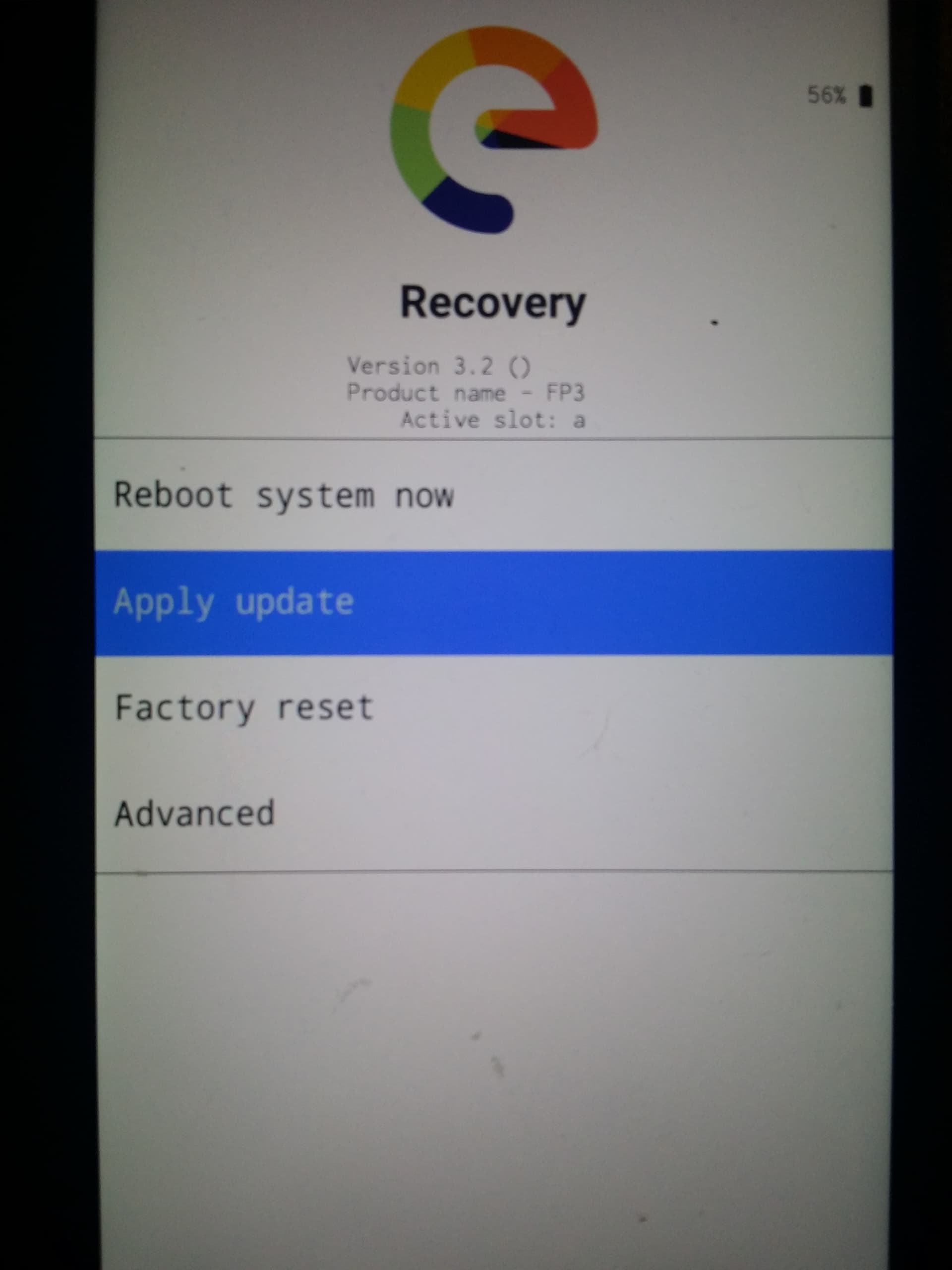
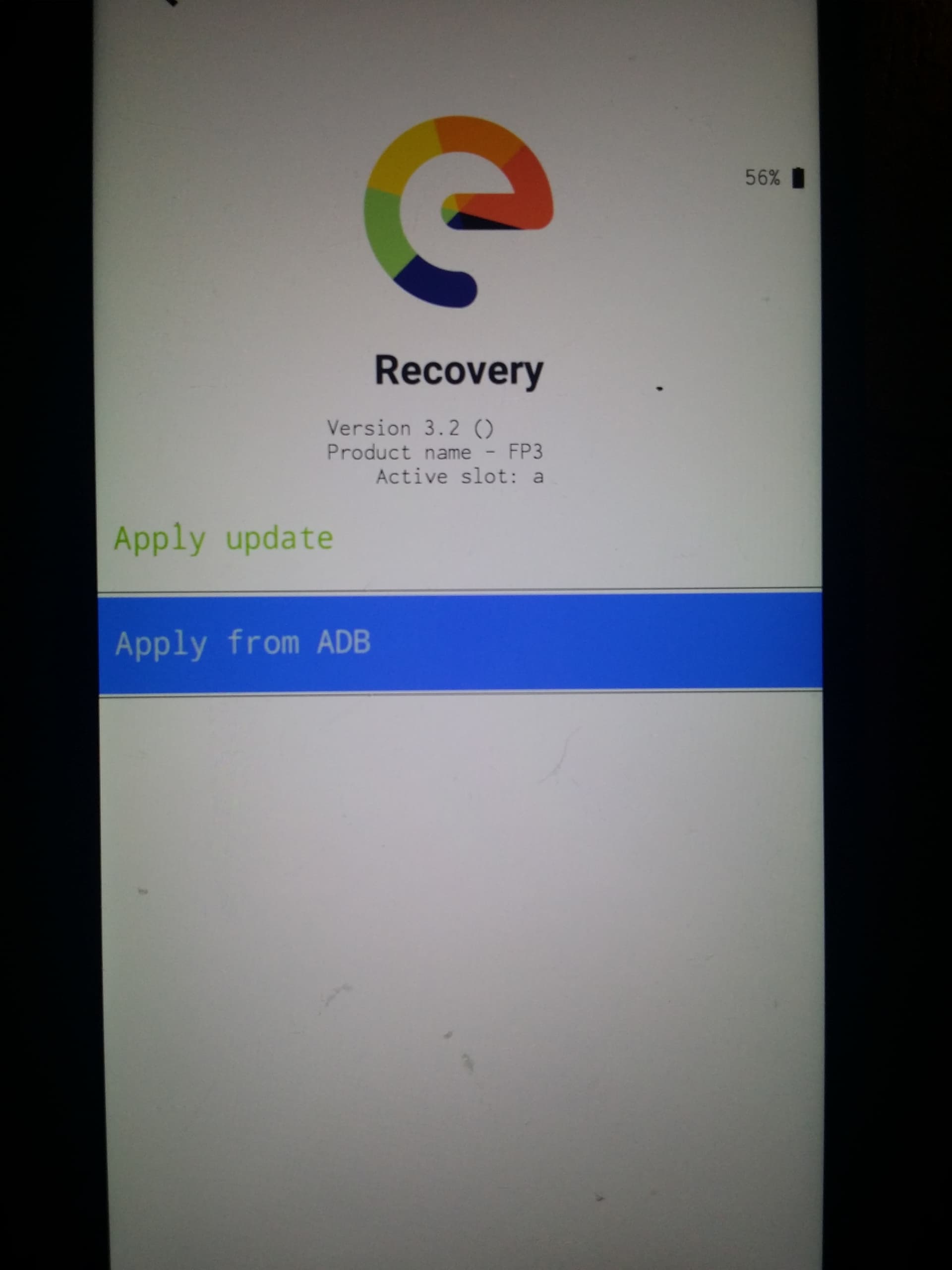
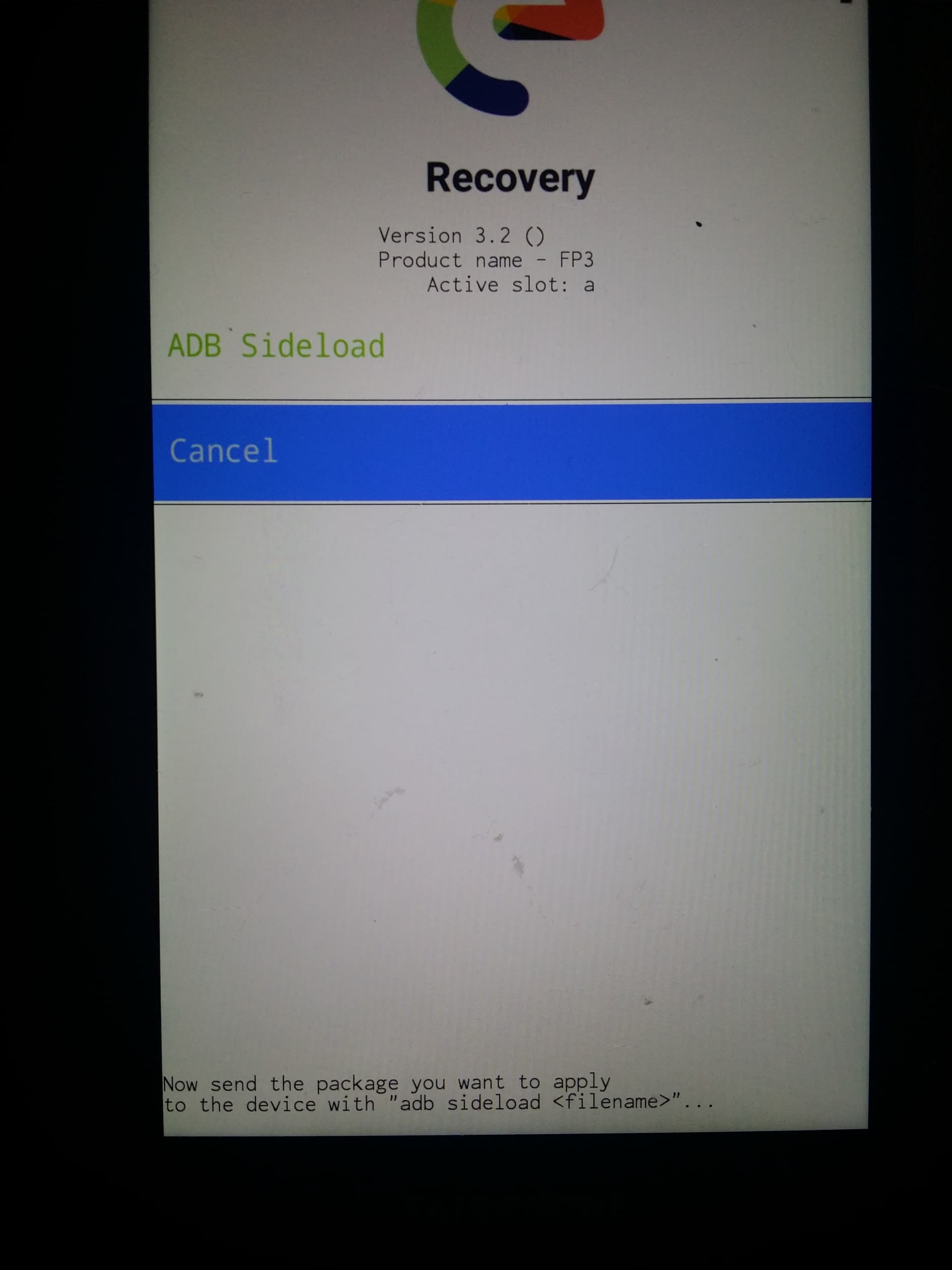
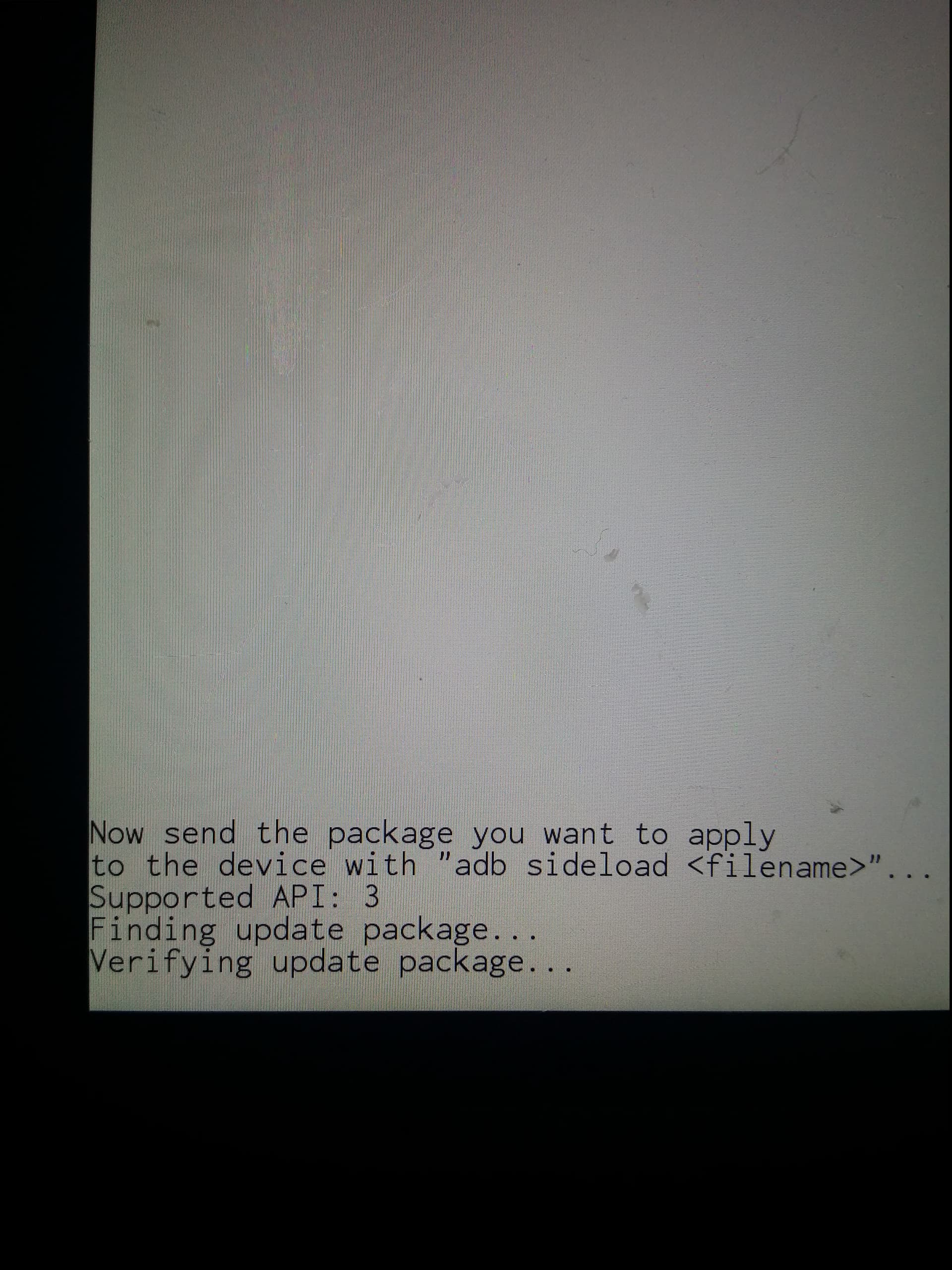
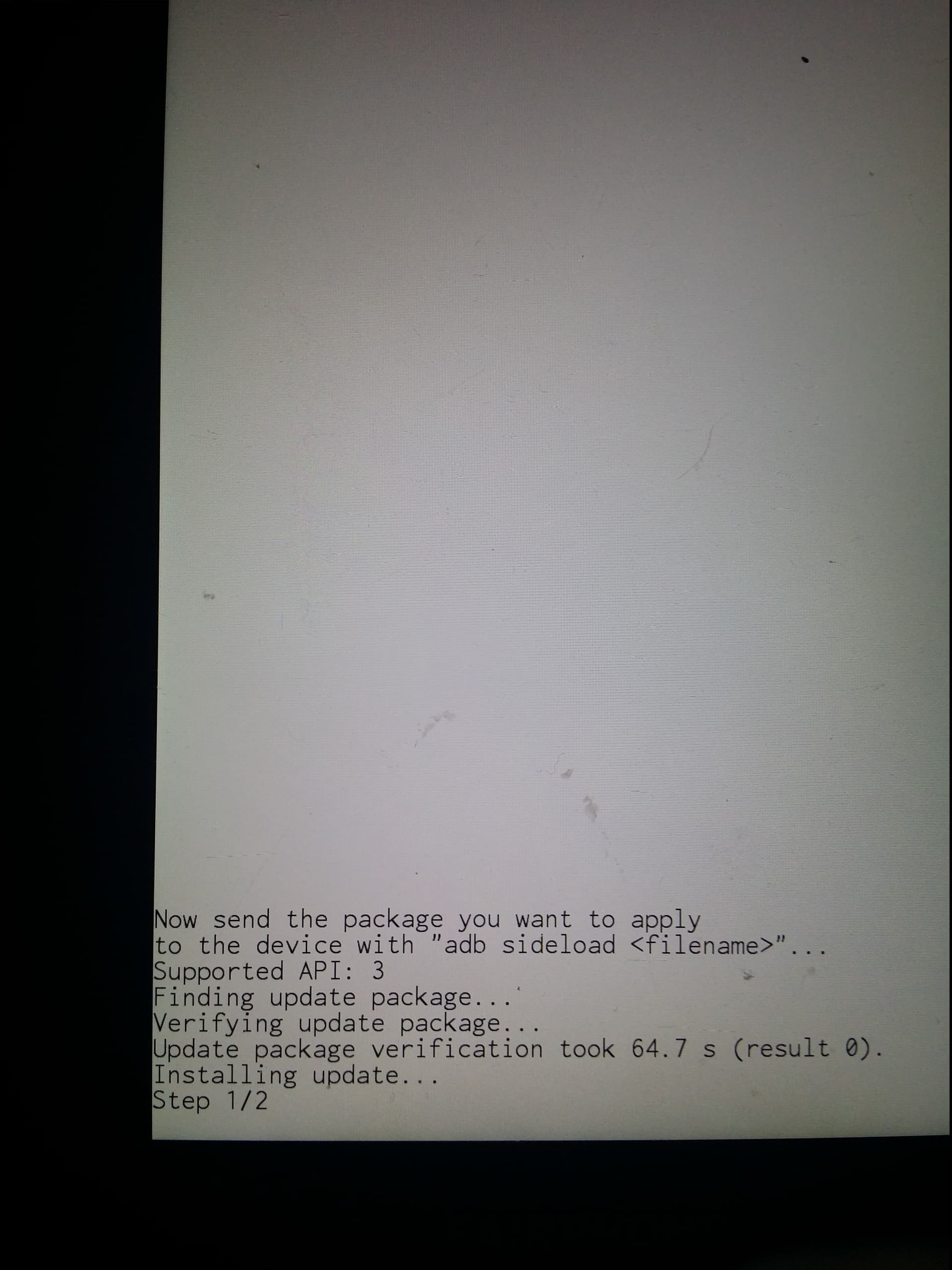
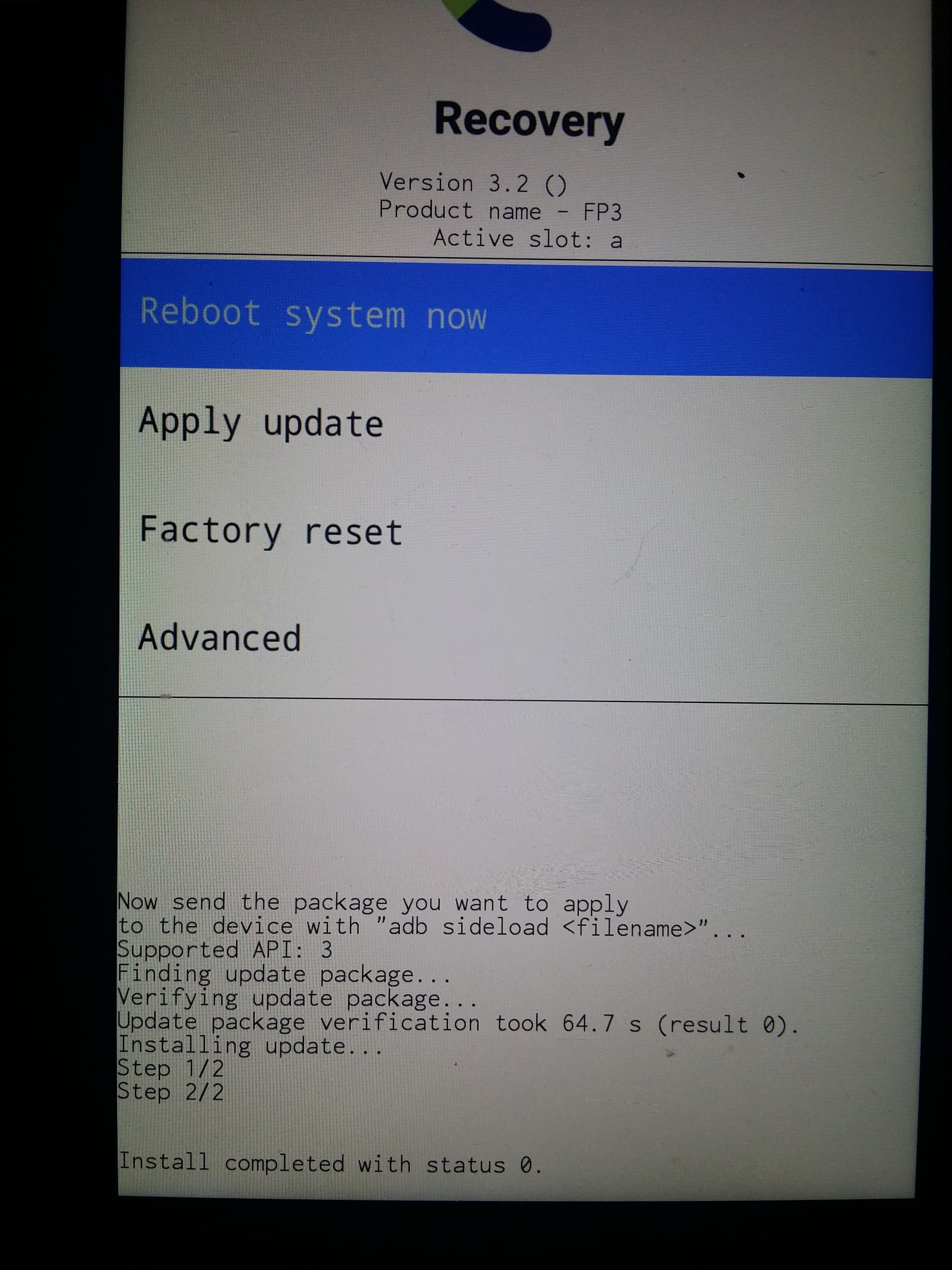
- Universal Method, download the file on a computer, reboot the phone into the recovery mode and use “apply update” then “from ADB” : (work on Fairphones).
download the latest /e/OS build for your device
it must be named like
e-3.2-a15-20251022539003-official-FP6.zip
But visible on their website, you will only find something named like
IMG-e-3.2-a15-20251022539003-official-FP6.zip
→ you will need to use the right clic to copy the link, and, paste it into the adress bar of your browser,
→ then remove the 4 IMG- carracters and press enter to download the right file
or take the direct download link from the OTA server :
FP2 : UNOFFICIAL (e-2.3-a11-20250113)
FP3 : community - official OTA
FP4 : community - official OTA
FP5 : community - official OTA
FP6 : community - official OTA